Blur Image Online — Free
Apply blur to your images for privacy, creative effects, or backgrounds.
Example result
Privacy Blur
Blur faces, license plates, or sensitive content — or create artistic soft-focus backgrounds.
Drag & drop your image here, or browse files
PNG, JPG, WebP, GIF, BMP · up to 50 MB
Use all tools together in the full image editor
How to Blur Image
No sign-up, no installation. Just upload, edit, and download.
- Step 1
Upload your image
Drag & drop or browse to select any PNG, JPG, or WebP image.
- Step 2
Apply the tool
Adjust the settings and see the result in real-time.
- Step 3
Download for free
Export as PNG, JPG, or WebP and save it to your device.
Why use our Blur Image tool?
The Blur Image tool applies a smooth blur to your entire image. Control the blur radius to achieve anything from a subtle soft-focus to a heavy defocus effect. Commonly used to obscure sensitive information, create background images, add depth-of-field simulation, or prepare images for use as blurred overlays in design projects.
- 1Adjustable blur radius
- 2Smooth gaussian-style blur
- 3Real-time preview
- 4Works on any image format
Who uses Blur Image?
From individual creators to professional teams — here's how people use this tool.
Obscure sensitive information in screenshots
Create soft background overlays
Privacy-safe face blurring
Depth-of-field simulation for design
What you can do with Blur Image
Privacy Protection
Blur license plates and faces in street photography before publishing.
Background Overlay
Create a soft blurred background image for website hero sections.
Depth Effect
Apply light blur to simulate shallow depth-of-field in flat photos.
See the difference
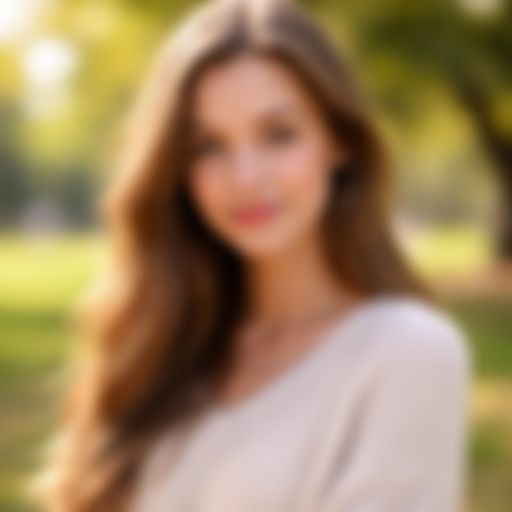
Sharp photo with distracting background details → Same photo with soft gaussian blur applied at radius 8

Tips for best results
Use radius 1-3 for subtle softening, 5-10 for noticeable blur, 15+ for heavy defocus.
Blur sensitive information in screenshots before sharing on social media.
Blurred images make excellent background overlays for text-heavy designs.
Runs in Your Browser
All processing happens locally on your device. Your images never leave your computer.
No Account Required
Start editing immediately. No sign-up, no email, no tracking. Just open and go.
Lightning Fast
Powered by your device's hardware. No waiting for server responses or queues.
Privacy First
Zero data collection. Your images stay on your device — nothing is uploaded anywhere.
Frequently Asked Questions
Common questions about blur image
This tool applies blur to the entire image. For selective blurring, consider cropping the region you want to blur, applying the effect, and compositing it back in a design tool.
A radius of 1-3 creates a subtle softening. A radius of 5-10 produces a noticeable blur. Values above 15 create a heavy defocus suitable for background overlays.
Learn More
Guides and tutorials related to blur image
How to Resize Images Online — Free Step-by-Step Guide
Learn how to resize images for social media, websites, and email. Free browser-based tool with no upload required.
How to Resize Images for Instagram — All Sizes & Formats (2026)
Complete guide to Instagram image sizes in 2026 — posts, stories, reels, profile pics, and carousels. Resize your images perfectly with our free tool.