Screenshot Mockup Online — Free
Place your screenshots inside device frames — iPhone, MacBook, or browser window.
Drag & drop your image here, or browse files
PNG, JPG, WebP, GIF, BMP · up to 50 MB
Use all tools together in the full image editor
How to Screenshot Mockup
No sign-up, no installation. Just upload, edit, and download.
- Step 1
Upload your image
Drag & drop or browse to select any PNG, JPG, or WebP image.
- Step 2
Apply the tool
Adjust the settings and see the result in real-time.
- Step 3
Download for free
Export as PNG, JPG, or WebP and save it to your device.
Why use our Screenshot Mockup tool?
The Screenshot Mockup tool places your screenshots inside realistic device frames. Choose from iPhone, MacBook, or browser window frames to create professional-looking mockups for portfolios, app stores, presentations, and marketing materials. The tool uses Canvas rendering to overlay your screenshot onto the device frame with proper sizing and corner radius. Export as PNG.
- 1iPhone device frame
- 2MacBook laptop frame
- 3Browser window frame
- 4Automatic screenshot fitting
- 5Canvas-based rendering
- 6Export as PNG
Who uses Screenshot Mockup?
From individual creators to professional teams — here's how people use this tool.
App store listing screenshots
Portfolio presentation mockups
Marketing materials for products
Client presentation visual aids
What you can do with Screenshot Mockup
App Store Listing
Place app screenshots inside iPhone frames for professional store listings.
Portfolio Showcase
Present website designs inside browser window frames for client portfolios.
Marketing Materials
Create device mockups for product launch landing pages and ads.
See the difference
Raw app screenshot without context → Screenshot placed inside a realistic iPhone device frame
Raw app screenshot without context
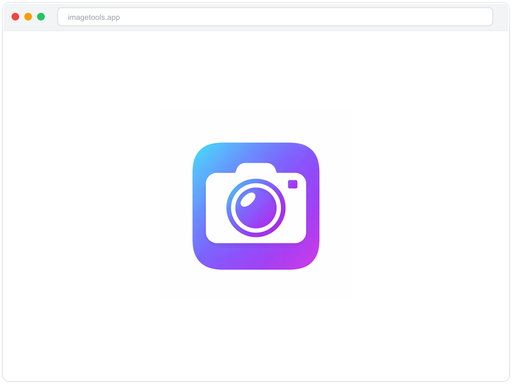
Screenshot placed inside a realistic iPhone device frame
Tips for best results
Use high-resolution screenshots for the sharpest mockup results.
iPhone frames work best for mobile app screenshots, browser frames for web projects.
The generated mockup is exported as PNG — perfect for presentations and marketing.
Runs in Your Browser
All processing happens locally on your device. Your images never leave your computer.
No Account Required
Start editing immediately. No sign-up, no email, no tracking. Just open and go.
Lightning Fast
Powered by your device's hardware. No waiting for server responses or queues.
Privacy First
Zero data collection. Your images stay on your device — nothing is uploaded anywhere.
Frequently Asked Questions
Common questions about screenshot mockup
Currently: iPhone (mobile), MacBook (laptop), and browser window. Each frame is drawn programmatically for crisp results at any size.
Any size works — the tool automatically scales your screenshot to fit the device's screen area. Higher resolution screenshots produce better results.
Frames use standard device colors (black iPhone, silver MacBook, gray browser chrome). The focus is on showcasing your content.
Learn More
Guides and tutorials related to screenshot mockup
How to Resize Images Online — Free Step-by-Step Guide
Learn how to resize images for social media, websites, and email. Free browser-based tool with no upload required.
How to Compress Images Without Losing Quality — Complete Guide
Reduce image file sizes by up to 90% while maintaining visual quality. Free online compression tool.
How to Resize Images for Instagram — All Sizes & Formats (2026)
Complete guide to Instagram image sizes in 2026 — posts, stories, reels, profile pics, and carousels. Resize your images perfectly with our free tool.